Flutter Widget Catalog: 12 We Ship in Production (2026 Field Guide)
The 10 must-have Flutter widgets every developer should know — containers, lists, buttons, navigation, gestures — what they do and when to use them.
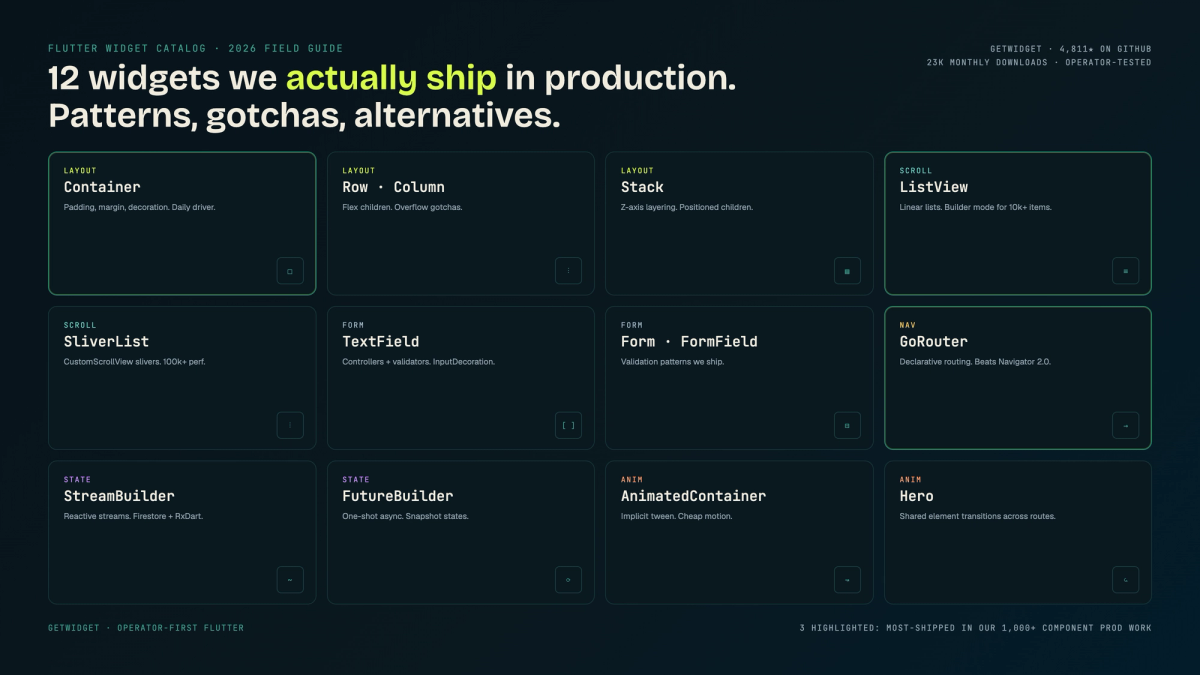
Flutter ships over 200 widgets in its core library. That number grows every stable release. The flutter widget catalog at docs.flutter.dev lists all of them, alphabetically, with zero opinion on which ones you'll actually hit in a real project. That's fine for a reference. It's not fine when you're on sprint two with a design change in review: you need a fast answer on SliverList vs ListView before the standup.
We maintain the open-source GetWidget Flutter UI Kit, currently at 4,811 GitHub stars and 23K monthly pub.dev downloads. Our team's shipped Flutter across 10 industries. Over those builds, the same shortlist of widgets shows up again and again. Not because there aren't alternatives, but because these 12 consistently clear the production bar on API stability, render performance, a11y, and customization surface.
This guide is that shortlist. We've included the gotchas we've hit, the alternatives we've tried, and the specific conditions where each widget wins or loses. If you want the full alphabetical flutter widgets list, docs.flutter.dev has it. If you want to know which flutter ui components we trust at production load, read on.
The catalog problem: why docs.flutter.dev isn't enough for a real build
Flutter's official widget catalog is comprehensive by design. It's meant to be a complete reference. But comprehensive and useful aren't the same thing when you're making a build decision under time pressure.
The reference lists AnimatedAlign, AnimatedBuilder, AnimatedContainer, AnimatedCrossFade, and two dozen more in the same breath. It doesn't tell you that AnimatedBuilder exists because AnimatedContainer doesn't cover the cases where your animation depends on state you own, not just properties the widget owns. That distinction takes a stack overflow session or a teammate's comment to learn. We'd rather you learn it here.
Syncfusion's flutter widgets list and similar posts try to fill that gap, but most are exhaustive: every widget on a page with no opinion about which ones matter. Medium posts tend toward shallow listicles. We've written both styles in the past. They don't hold up in production usage.
What works: a short, opinionated list with a clear selection rubric and a direct answer to "when would I skip this?" That's what this flutter widget catalog is.
How we picked these 12: the production-readiness rubric
Every widget on this list passes four criteria we've tested across our client projects. We use this rubric internally when deciding whether to use a stock Flutter SDK widget, a GetWidget UI Kit component, or a custom-built one.
| Criterion | What we check | Pass bar |
|---|---|---|
| API stability | Has the API broken across Flutter stable releases in the past 2 years? | No breaking changes in 2 consecutive stable releases |
| Render performance | Does it maintain 60fps at the data volumes our clients use (500+ list items, 10k chart points)? | No dropped frames in profile mode at target load |
| Accessibility (a11y) | Does it expose correct semantics to screen readers without manual SemanticsNode wrapping? | VoiceOver + TalkBack pass without manual override |
| Customization surface | Can we match a design system without fighting the widget's own paint logic? | Theme-able via ThemeData or direct constructor params; no forced Paint overrides |
Widgets that fail two or more of these criteria landed in our §10 skip list. A few (looking at you, Table widget) fail all four.
Layout primitives: Container, Row/Column, Stack
These three are the ones you'll never stop using. They're also the ones where new Flutter devs hit the most avoidable layout failures.
Container
Container is the Swiss Army knife of flutter ui components. It wraps a single child with a full decoration API: padding, margin, background color, border radius, shadows, and transforms. The gotcha: a Container with no child expands to fill its parent. With a child, it shrinks to fit. This surprises most developers when they're trying to build full-width sections that contain content. Use constraints explicitly if you need both: a full-width container with a sized child.
When to skip it: if all you need is padding, use Padding directly. Flutter's DevTools widget inspector shows Container adds two extra nodes (DecoratedBox + ConstrainedBox) even when most properties are null. That overhead is negligible individually but visible in deep widget trees we've profiled with Flutter Inspector.
Row and Column
Row and Column are Flutter's Flexbox equivalents. Most beginner overflow errors trace to one of three mistakes: forgetting to wrap Expanded around a flex child that needs available space, nesting an unbounded Column inside a ListView (both try to take infinite height and one wins arbitrarily), or using Column's crossAxisAlignment when MainAxisAlignment was intended.
Our rule of thumb in code review: if you're nesting more than three levels of Row/Column, you probably need a CustomMultiChildLayout or a Flex-based layout helper. The Dart analyzer won't catch it; your designer will when the breakpoint changes.
Stack
Stack layers children in the Z axis. It's the right tool for overlays, badge overlays, and hero image text. Positioned is Stack's companion: without it, children pile at the top-left corner. The frequent mistake is using Stack when an Align or Overlay would serve better. If you're using Stack to center one element over another, use Align. If you're building a portal (a tooltip that should appear above everything), use Overlay.
Scrolling and lists: ListView, SliverList, CustomScrollView
Scroll performance is where Flutter's flutter widget library splits between apps that feel native and apps that feel like Cordova. The choice between ListView and SliverList isn't academic.
ListView is the right default for flat, single-content-type lists under 5,000 items. Use ListView.builder (not ListView(children: [...])) for anything dynamic. The constructor form pre-builds all children; .builder lazy-builds on scroll. We've seen 200ms first-render differences in client apps that used the constructor form for a 300-item list.
SliverList is for complex scroll UIs: collapsing headers, mixed content grids, sticky section labels. It's more work to set up because you need a CustomScrollView as the parent and SliverAppBar for the collapsing header. But it's the only path when you need multiple scrollable regions with shared scroll physics. Our GetWidget UI Kit wraps common patterns here into GFAccordion and GFCarousel to reduce that setup cost.
CustomScrollView is not a replacement for either. It's a scroll viewport that holds Slivers. Think of it as the scroll context, not the list implementation. You'll use it every time you combine a SliverAppBar + SliverList + SliverGrid in one view.
Forms and inputs: TextField, Form, FormField
Form handling in Flutter is one of those areas where developers build their own validation scaffolding, then discover Form + FormField does it already. We've reviewed codebases where each TextField maintained its own FocusNode. Add a separate TextEditingController and hand-rolled error state per field and the boilerplate compounds fast. Form consolidates all of that.
The pattern we ship: one GlobalKey<FormState> per form, TextFormField (not raw TextField) for each input, and a single formKey.currentState!.validate() call on submit. That's it. The validator callback on each field runs automatically. Error text appears inline without any setState call for the error message.
Where it breaks down: conditional field visibility. If a field appears or disappears based on another field's value, Form doesn't have a built-in mechanism for conditional registration. We've tried nullable keys and visibility widget wrapping; a custom FormField subclass works but adds ceremony. The cleanest approach we've found is using Riverpod's StateNotifier to own the form state and letting TextField widgets react to it directly, bypassing Form for the conditional sections.
TextField on its own is the right choice for single-field cases (search bars, chat inputs, quick modals). Wrap it in an InputDecoration and set the controller. Don't reach for Form when you don't need it.
Navigation: Navigator 2.0, GoRouter, AutoRoute
Navigation is the category where the Flutter community has the most tribal knowledge and the most pain. Here's the honest comparison we wish we'd had earlier.
Works for most apps. Push-pop model. Simple and predictable for 3-10 route apps. Doesn't handle deep links or browser back-button natively. Almost always good enough for mobile-only, no-deep-link apps. No extra dependency. We still use it on apps with <8 screens and no URL-based navigation requirements.
The current Flutter team recommendation for declarative routing. Handles deep links, URL-based navigation, nested navigation, and redirect guards via a clean routing configuration. Our default on every app shipped after early 2023. Set it up once, skip the imperative spaghetti. Pub.dev package: go_router. AutoRoute is a code-gen alternative if you prefer generated route constants over string paths.
Navigator 2.0 (the Router API) is what GoRouter and AutoRoute are built on. You don't use Navigator 2.0 directly unless you're building a routing package yourself. If you see Navigator 2.0 tutorials that show raw RouterDelegate and RouteInformationParser implementations, they're showing you the internals. Use GoRouter instead.
AutoRoute is worth evaluating if your codebase already uses code generation (freezed, json_serializable). It generates typed route constants and guard annotations via build_runner. The trade-off: you're adding a code-gen step and learning its annotation syntax. GoRouter is less magic and easier to debug when a redirect loop breaks at 2am.
State-aware widgets: StreamBuilder, FutureBuilder, ValueListenableBuilder
These three represent three different state-source patterns. Getting the match right means you don't need to bolt on a full state management layer for simple reactive UIs.
FutureBuilder: use it when your data arrives once (an API call, a file read, a Firestore document fetch). It's the simplest pattern. The pitfall is calling an async function directly inside the build method, which recreates the Future every rebuild. Always assign the Future to a field initialized in initState or stored in a state management layer (Riverpod or Provider). We've reviewed apps where FutureBuilder was re-fetching an API on every scroll event because the future was created inline.
StreamBuilder: use it when your data source is continuous (WebSocket, Firestore real-time listeners, BLoC streams). BLoC's entire widget surface is built on StreamBuilder under the hood. The key parameter on StreamBuilder is important: without it, rebuilds lose the previous snapshot and flash a loading state. Always pass a key.
ValueListenableBuilder: use it when your state lives in a ValueNotifier and you want surgical rebuilds. It only rebuilds the subtree inside its builder, not the whole widget. It's what we reach for when Provider or Riverpod is overkill: a single counter, a toggle, a selection state in a list item. Lighter than a ChangeNotifier, no extra package dependency.
Animation primitives: AnimatedContainer, Hero, AnimatedSwitcher
Flutter's animation system is its strongest differentiator from React Native. These three cover 80% of what production apps actually need. We've shipped dozens of apps and rarely needed anything beyond this set for product UI animations.
AnimatedContainer interpolates between property values automatically. Change the height, color, or padding and it tweens the transition without an AnimationController. The limit: it only works when the properties you're animating are part of the widget's direct configuration. If you need to animate something that depends on your own state or an external ticker, AnimatedBuilder is the next step up.
Hero handles shared-element transitions between routes. Tag a widget with Hero(tag: 'product-42') on screen A and the same tag on screen B. Flutter's router draws the animation automatically on navigate. The gotcha: Hero tags must be globally unique per transition. We've seen Hero conflicts in apps that used incremented numeric tags inside ListView items without scoping them to a unique ID.
AnimatedSwitcher fades (or cross-fades) between child widgets when the child changes. It's the right tool for loading-to-content transitions and tab body swaps. One common mistake: it uses the child widget's type and key to detect changes. If you swap between two widgets of the same type without changing the key, AnimatedSwitcher won't animate. Set a ValueKey on each child.
The custom layer: GetWidget components we use on top of stock Flutter
Stock flutter widgets give you primitives. The GetWidget Flutter UI Kit adds the components every product team ends up building anyway: the styled buttons, card layouts, carousels, and tab bars that match the Material design patterns we see in 90%+ of client design systems.
The key principle behind our flutter widget library is additive: GetWidget doesn't replace the Flutter SDK widget system, it builds on top of it. Every GetWidget component accepts the underlying widget's props as passthrough where relevant. You're not locked into our component when you need to break out to stock Flutter.
Widgets we'd skip in 2026: and what to use instead
Not everything in Flutter's catalog has aged well. These are the ones we've stopped reaching for and why.
The flutter widgets cheat sheet summary: avoid Table, AnimatedList (unless you enjoy pain), Scaffold.of(), and the deprecated button trio. If you inherited a codebase with these, the migration effort is usually half a day. It's worth it before the next major Flutter SDK release.
Flutter widgets cheat sheet: the decision tree
The table below maps the 12 catalog widgets to the conditions where each is the right call. Use it as a reference the next time you're deciding between similar options. The weight column uses yes/no/maybe to indicate fit strength.
| Widget | Flat list ≤5K items | Complex scroll / collapsing header | Form with validation | Animation between states | Navigation with deep links |
|---|---|---|---|---|---|
| ListView.builder | Best default | Use SliverList instead | Not applicable | Wrap items in AnimatedSwitcher | Not applicable |
| SliverList + CustomScrollView | Overkill unless mixing regions | Correct choice | Not applicable | Not applicable | Not applicable |
| Form + TextFormField | Not applicable | Not applicable | Correct choice | Not applicable | Not applicable |
| AnimatedContainer | Not applicable | Not applicable | Not applicable | Property-only changes; use AnimatedBuilder if state-driven | Not applicable |
| Hero | Not applicable | Not applicable | Not applicable | Shared-element cross-route only | Works with GoRouter's HeroController |
| GoRouter | Not applicable | Not applicable | Not applicable | Not applicable | Correct choice for most apps |
| FutureBuilder | Not applicable | Not applicable | Not applicable | Loading-to-content via AnimatedSwitcher wrap | Not applicable |
| StreamBuilder | Not applicable | Not applicable | Not applicable | Reactive state: always updating UI | Not applicable |
The decision matrix covers the flutter widgets in our catalog. For a complete flutter widgets cheat sheet covering the full SDK, docs.flutter.dev's widget catalog is still the right bookmark. This matrix is the decision layer on top of that reference.
Putting it together: how we use this flutter widget catalog in production
We've found that the most expensive build decisions aren't the architecture calls (state management, navigation package, folder structure). Those get debated and documented in ADRs. The expensive ones are the small widget choices that accumulate: 50 screens each with a slightly different card layout, three different scroll patterns used for no reason, form validation reimplemented four ways by four developers who didn't know the team had settled on FormField.
What works: a project-level widget decision log. Not a heavy document. A short Markdown file in the repo that records: "for list screens, we use ListView.builder; for detail screens with collapsing headers, SliverList + SliverAppBar; for forms, Form + TextFormField + GlobalKey; for navigation, GoRouter." That's it. New developers read it in 5 minutes and don't invent a fourth scroll pattern.
The flutter widget catalog we maintain in GetWidget's open-source toolkit follows the same principle. It's a curated, opinionated set of flutter ui components we know work at production scale across multiple industries. We don't include components just because they're possible to build. We include them because we've hit the need repeatedly and want to stop rebuilding from scratch.
If you're starting a new Flutter project, our suggested stack for 2026: Flutter SDK (stable channel) for the runtime, GoRouter for navigation, Riverpod for state management, and the GetWidget UI Kit for the component layer. DevTools + Flutter Inspector handle profiling and widget tree inspection. That combination covers 90% of what most product teams need. Reach for BLoC if your team has stream-heavy mental models and wants the explicit event-to-state trace. Add Provider if you're on an older codebase that already uses it. Don't add both.
If you'd like us to review your current widget choices or help establish a project widget standard, we run $3K architecture audits that cover exactly this. We've done it across multiple Flutter codebases in fintech, healthcare, and ecommerce. The findings tend to repeat: scroll pattern fragmentation across screens. Form validation reimplemented in per-widget state rather than using Form. Hero tag collisions that surface only in edge navigation flows.
What is a Flutter widget catalog?
A Flutter widget catalog is a curated reference of Flutter SDK widgets grouped by function (layout, scroll, form, navigation, animation). Unlike the full docs.flutter.dev listing, a production-focused catalog includes opinion on which widgets to use in specific scenarios. It also covers performance characteristics at real data volumes and the gotchas you'll only find in shipped apps.
How many Flutter widgets are there in the Flutter SDK?
The Flutter SDK ships over 200 widgets in its core library, with more added each stable release. The official reference at docs.flutter.dev lists all of them. In practice, most Flutter applications rely on a shortlist of 20-30 widgets for the majority of their UI, with the rest available for specialized use cases.
What is the difference between ListView and SliverList?
ListView is a ready-to-use scrollable list that handles its own scroll physics. SliverList is a lower-level sliver that must live inside a CustomScrollView. Use ListView.builder for standard flat lists up to ~5,000 items. Use SliverList when you need to mix a collapsing SliverAppBar, a pinned header, or multiple scroll regions in the same scroll viewport.
Should I use GoRouter or Navigator 2.0 directly?
Use GoRouter. Navigator 2.0 is the underlying Router API that GoRouter is built on. Writing raw RouterDelegate and RouteInformationParser implementations is the internal layer — GoRouter wraps it in a usable API. GoRouter handles deep links, URL-based navigation, and redirect guards out of the box. For apps with fewer than 8 screens and no deep-link requirements, Navigator 1.0's imperative push/pop is still fine and adds no dependency.
What's the difference between Riverpod, Provider, and BLoC for Flutter state management?
All three are production-ready options. Provider is simpler and works well for small apps or teams new to Flutter. Riverpod is the current community recommendation for new projects: it fixes Provider's context-dependency issues and has better testability. BLoC is best when your team thinks in stream-based event-to-state flows and wants explicit trace logs of every state transition. Our current default is Riverpod for new projects.
Is the GetWidget Flutter UI Kit free to use?
Yes. The GetWidget Flutter UI Kit is MIT licensed and free for commercial and personal use. It's available at pub.dev/packages/getwidget with over 23K monthly downloads. It covers 1,000+ components: buttons, cards, carousels, badge overlays, tab bars, ratings, and more.
What Flutter widgets are deprecated and should be replaced?
The legacy button trio (RaisedButton, FlatButton, OutlineButton) was deprecated in Flutter 2.0 and should be replaced with ElevatedButton, TextButton, and OutlinedButton. Scaffold.of(context) for SnackBar is deprecated in favor of ScaffoldMessenger.of(context). The Table widget isn't deprecated but has significant accessibility and performance limitations — use DataTable or a custom SliverList approach instead.
How do I choose between FutureBuilder and StreamBuilder?
Use FutureBuilder when your data arrives once: an API response, a local database read, a file operation. Use StreamBuilder when your data source is continuous: WebSocket connections, Firestore real-time listeners, BLoC stream outputs. The critical FutureBuilder mistake is creating the Future inside the build method, which re-fires it on every rebuild. Assign the Future in initState or use a state management layer like Riverpod to own the Future lifecycle.
Related reading
- Progressive Web Apps in 2026: PWA vs Native vs Flutter Decision Guide
- The Frontend Developer Roadmap (2026): AI-Augmented Path to Production
Who actually ships these widgets in production?
Our team does. You can also hire Flutter developers fluent in GetWidget directly via HireFlutterDev, our sister staffing brand under the same Getwidget Labs Pvt Ltd Org. Vetted India-based seniors at $42/hr. 48-hour developer match. The engineer you bring on ships using the exact components catalogued above.


How Much Does It Cost to Hire a Flutter Developer in 2026? Rates, Salary Bands, and App Development Cost
How much does it cost to hire a Flutter developer? $15–$150/hr depending on region and seniority — breakdown by India, US, and Eastern Europe rates.
Top Flutter App Development Companies in 2026 — A Buyer's Shortlist (India + Global)
Top 10 Flutter app development companies in India (2026) — vetted by portfolio, scale, pricing, and Flutter delivery experience for production builds.

AI in Banking — Use Cases, Named Bank Precedents, and Eval Methodology (2026)
How AI is used in banking — fraud detection, credit scoring, customer service automation, RegTech, and the use cases banks are deploying right now.

AI Healthcare Companies in 2026 — A Curated Vendor Map (Clinical AI, Diagnostics, Drug Discovery, Mental Health)
An evaluator's shortlist of 36 named AI healthcare companies grouped by category, with the criteria we use when shortlisting vendors for hospital and health-system buyers.