Flutter Progress Bar Indicator: A 2026 Practitioner Guide to Linear, Circular, and Custom
Build a linear progress bar in Flutter — using LinearProgressIndicator, customizing color and value, and integrating GetWidget's GFProgressBar widget.
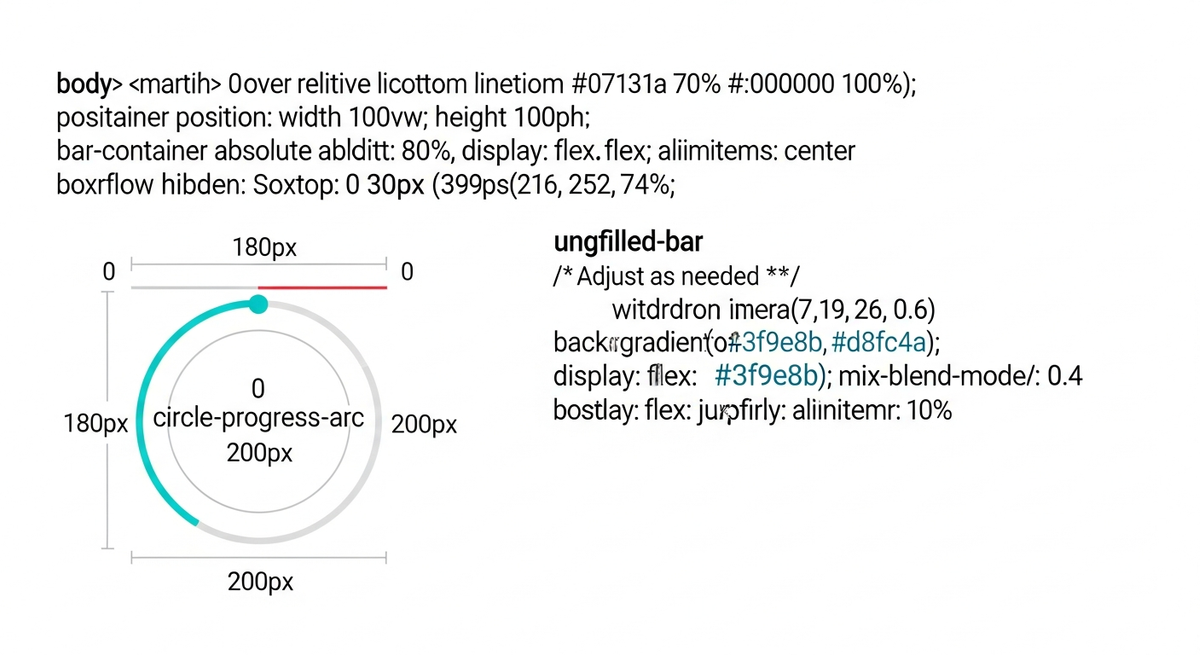
Progress indicators are the first thing users notice when an app feels slow. The widget choice is small: Flutter ships two flutter progress bar indicator widgets in the framework. The design and accessibility decisions around them are where production apps usually go wrong. This guide walks through LinearProgressIndicator and CircularProgressIndicator, the Material 3 redesign that landed in Flutter 3.29, custom progress bars with gradients, and the patterns we ship across ten industries.
A framing note. The flutter progress bar indicator question that most tutorials skip: when do you use Linear, when Circular, when custom, and when do you wrap a third-party package over the built-in. The choice tracks the user task, not the developer preference. The sections below walk through each.
One nuance worth surfacing before we dive into the widgets. Determinate progress bars communicate confidence to users. The user knows when the task will finish and adjusts their attention. Indeterminate progress bars communicate uncertainty. The user knows something is happening but cannot plan around it. Teams default to indeterminate because it is easier to code, but every time you can compute a real percentage and switch the indicator to determinate, you remove a small amount of user anxiety from the screen. We push every flutter progress bar indicator in our deliveries toward determinate where the data exists.
Linear vs Circular: pick by user task, not widget aesthetic
LinearProgressIndicator is a horizontal bar. CircularProgressIndicator is a spinning ring. Both come in determinate (you know the percent) and indeterminate (you do not) modes. The decision is not visual taste, it tracks two things: whether the task has a known end, and whether the screen has horizontal room.
| User task | Linear (determinate) | Linear (indeterminate) | Circular (determinate) | Circular (indeterminate) |
|---|---|---|---|---|
| File upload with known size | Yes, best fit | No | OK if compact | No |
| API call, unknown duration | No | OK for page top | No | Yes, full-screen wait |
| Onboarding step 3 of 5 | Yes, step indicator | No | No | No |
| Pull-to-refresh on a list | No | OK above the list | No | Yes, built into RefreshIndicator |
| Inline button loading state | No | No | Yes, small radius | Yes |
| Video buffering | Yes, over video | OK | Yes, centered | OK |
LinearProgressIndicator: the determinate flutter progress bar
Use LinearProgressIndicator any time you can measure progress against a known end. File uploads, multi-step forms, video playback scrubbers, batch operations all fit. Setting the value property between 0.0 and 1.0 puts the bar into determinate mode. Leaving value as null gives you the indeterminate moving stripe. The widget is the most common flutter progress bar indicator in production apps, and the one most teams ship without rethinking past the defaults.
LinearProgressIndicator(
  value: bytesUploaded / totalBytes,
  backgroundColor: Theme.of(context).colorScheme.surfaceContainerHighest,
  color: Theme.of(context).colorScheme.primary,
  minHeight: 6,
  borderRadius: BorderRadius.circular(3),
);
The minHeight and borderRadius props are the two cosmetic levers worth knowing. Default minHeight is 4 pixels, which looks thin on modern displays; 6 is our standard, 8 if the bar is the primary focus of the screen. borderRadius landed in Flutter 3.0 and is purely visual but matches every other rounded surface in Material 3 apps.
CircularProgressIndicator: when the wait is open-ended
CircularProgressIndicator is the right choice when you cannot measure progress, when the screen has more vertical than horizontal room, or when you need a compact loading state inside a button or icon slot. The strokeWidth and value props control determinate vs indeterminate the same way as Linear. For the circular flutter progress bar indicator inside a button, drop strokeWidth from the default 4.0 to 2.0 so the ring matches the button's visual weight.
FilledButton(
  onPressed: isLoading ? null : _submit,
  child: isLoading
      ? SizedBox(
          height: 18, width: 18,
          child: CircularProgressIndicator(strokeWidth: 2.5),
        )
      : const Text('Submit'),
);
The inline-button pattern above is the single most common production use of CircularProgressIndicator we ship. Two rules: wrap it in a fixed-size SizedBox so the button does not jump when state flips, and drop strokeWidth to 2.5 or 2.0 because the default 4 looks chunky at small sizes.
Material 3 redesign in Flutter 3.29 and the year2023 opt-in flag
Flutter 3.29 (stable) shipped a redesigned LinearProgressIndicator and CircularProgressIndicator that match the updated 2024 Material 3 spec. The changes are visual but noticeable: a gap between the active and inactive tracks, a stop indicator on Linear, rounded corners on Linear, and a rounded stroke cap on Circular. To avoid breaking existing app designs, the new look is opt-in via a year2023: false flag.
MaterialApp(
  theme: ThemeData(
    useMaterial3: true,
    colorScheme: ColorScheme.fromSeed(seedColor: brandPrimary),
    progressIndicatorTheme: const ProgressIndicatorThemeData(
      year2023: false,
    ),
  ),
);
Custom progress bar: linear-gradient, child content, and the GFProgressBar shortcut
Built-in LinearProgressIndicator does not accept a child or a gradient fill. For brand-specific designs (gradient bars, percentage labels inside the bar, leading and trailing icons), you either build the widget yourself with a Stack and a sized Container, or use GFProgressBar from the GetWidget UI kit we maintain.
Container(
  height: 14,
  decoration: BoxDecoration(
    color: Colors.grey.shade200,
    borderRadius: BorderRadius.circular(7),
  ),
  child: Align(
    alignment: Alignment.centerLeft,
    child: FractionallySizedBox(
      widthFactor: progress.clamp(0.0, 1.0),
      child: Container(
        decoration: BoxDecoration(
          gradient: const LinearGradient(
            colors: [Color(0xFF1ED05A), Color(0xFF02A4FA)],
          ),
          borderRadius: BorderRadius.circular(7),
        ),
      ),
    ),
  ),
);
GFProgressBar handles the same case with one widget call, plus a child slot for in-bar text, leading and trailing icon props, and animation control. Pull it in when you already use GetWidget components elsewhere. For an isolated need, the FractionallySizedBox pattern above keeps your dependency tree smaller.
Performance: where progress indicators jank in production
Indeterminate progress indicators animate continuously. Each animation tick rebuilds the widget. If the indicator sits inside a screen that also rebuilds frequently (typing into a TextField, a stream-driven counter, a ticking clock), the indicator and the rest of the screen end up sharing a rebuild budget and the whole screen slows down.
One placement decision worth thinking about explicitly. Top-of-screen progress bars (under the AppBar) work for ambient state like fetching new feed items in the background. They are easy to ignore and read as system status. Centered full-screen circular indicators block the UI and read as 'wait, do nothing else.' Inline indicators inside a button or icon slot read as 'this specific action is in flight.' Mixing these signals wrong is one of the most common UX bugs we catch in Flutter app reviews. Match the indicator placement to the user's expected interaction model, not just to where the indicator visually fits.
Accessibility: announce progress, do not just paint it
Progress indicators are nearly invisible to screen readers by default. Flutter wraps them in basic Semantics, but you control the announced label. Set semanticsLabel and semanticsValue explicitly on every determinate indicator. For indeterminate, the screen reader needs a label that names what the user is waiting on.
LinearProgressIndicator(
  value: bytesUploaded / totalBytes,
  semanticsLabel: 'Uploading file',
  semanticsValue: '${(bytesUploaded / totalBytes * 100).round()}%',
);
Progress indicators are one of dozens of widgets we have a default pattern for. The full Flutter widgets catalog covers the rest. For the broader Flutter delivery patterns we apply on every project, state management, performance, CI/CD, see our Flutter mobile app development field guide.
Common questions about flutter progress bar indicators
What is the difference between LinearProgressIndicator and CircularProgressIndicator?
Linear is a horizontal bar; Circular is a spinning ring. Both support determinate mode (set value 0.0–1.0) and indeterminate (leave value null). Linear fits multi-step or measurable progress; Circular fits open-ended waits and compact slots like inside a button.
How do I fix the height of a progress bar in Flutter?
On LinearProgressIndicator, use the minHeight prop. The default is 4 pixels which looks thin on modern displays. We default to 6 in most apps and 8 when the bar is the primary focus of the screen. On custom progress bars, wrap the widget in a fixed Container or SizedBox with the height you want.
Can I use animation in a Flutter progress bar?
Indeterminate Linear and Circular indicators animate built-in. For animating a determinate value smoothly between updates, wrap the value in a TweenAnimationBuilder or use AnimatedBuilder with an AnimationController, then pass the interpolated value to the indicator. Avoid running the animation faster than 60fps, it adds rebuild cost with no visible benefit.
How do I add a linear gradient to a Flutter progress bar?
Built-in LinearProgressIndicator does not accept a gradient fill. Build a custom widget with a Container, BoxDecoration with the gradient, and FractionallySizedBox to size it to the progress value. GFProgressBar from the GetWidget UI kit also accepts a linearGradient prop if you want a one-liner.
What is the year2023 flag on progress indicators?
Flutter 3.29 shipped a Material 3 redesign of progress indicators (gap between active and inactive tracks, stop indicator, rounded corners). The year2023 flag controls which spec is used: true (default) keeps the 2023 look, false opts into the 2024 spec. Set ProgressIndicatorThemeData.year2023 to false in ThemeData to flip the whole app at once.
Is Flutter progress indicator accessible?
Not by default. The widget exposes semanticsLabel and semanticsValue props but they are null unless you set them. Always pass semanticsLabel (what the user is waiting on) and, for determinate indicators, semanticsValue with the percentage. Screen readers cannot infer progress from the visual animation alone.
When should I use GFProgressBar instead of LinearProgressIndicator?
Use GFProgressBar when you need a child slot inside the bar (percentage text, status label), a linear gradient fill, or leading and trailing icons, all of which built-in LinearProgressIndicator does not support. For plain progress bars in apps not already using GetWidget, the built-in widget is the lower-overhead choice.

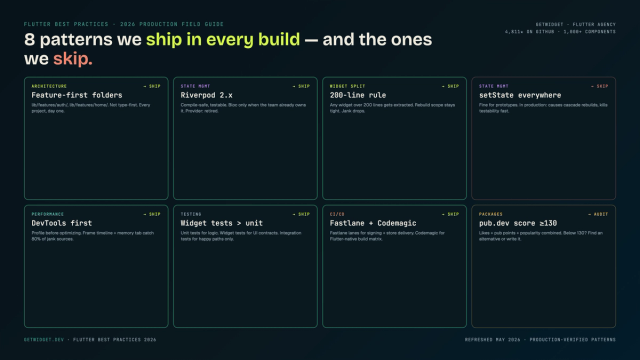
Flutter Mobile App Development: A 2026 Production Field Guide
How we structure Flutter projects at GetWidget in 2026: feature-first layout, Riverpod defaults, Dart 3 records and sealed classes, Material 3 theming, the 200-line widget rule, performance diagnosis, CI/CD pipelines, and the production pitfalls that bite teams after launch.
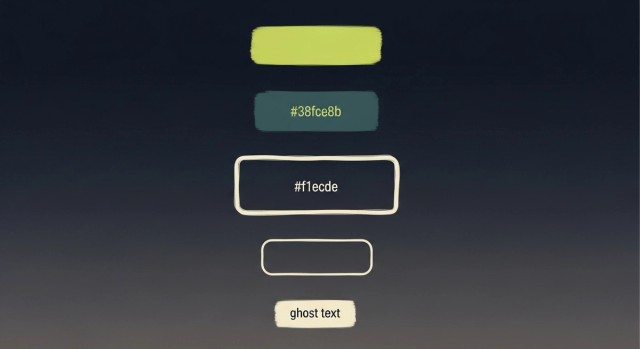
How to Design Custom Flutter Buttons in 2026: A Practitioner Guide to All 5 M3 Button Widgets
Flutter button widgets in 2026: the five Material 3 button classes (Filled, FilledTonal, Elevated, Outlined, Text), ButtonStyle deep-dive, GFButton when M3 isn't enough, FAB and IconButton patterns, M2 migration map, plus the accessibility and performance bars no tutorial covers.
Flutter TabBar Widget in 2026: TabBar, TabBarView, TabController, and the Material 3 Primary vs Secondary Distinction
Build a Flutter TabBar widget to navigate between pages in a single view. Customize indicators, handle controllers, and pair with GetWidget's GFTabs.