Flutter Checkbox: Tristate, ListTile, and Custom Patterns
Checkbox vs CheckboxListTile vs custom. Tristate semantics, group state management, validation in FormField, and a11y patterns.
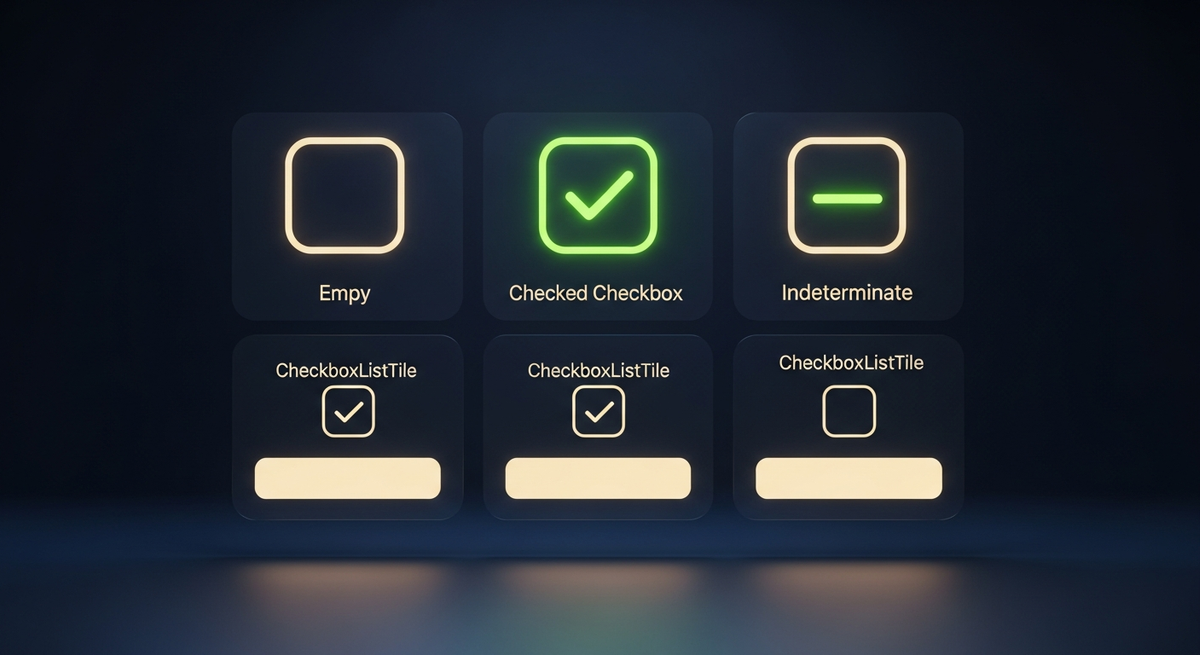
The Flutter checkbox widget looks deceptively simple: a boolean, a callback, a square. Ship it into a real form and complexity surfaces fast. Which variant do you reach for? How do you wire three dozen checkboxes to a single state object without rebuilding the entire tree on every tap? What does the null value in tristate actually mean, and when should you expose it to users?
Our team has shipped checkbox UIs in healthcare intake forms, fintech KYC screens, and ecommerce filter drawers. This guide covers what the API docs skip: tristate edge cases, group state patterns, FormField integration, and accessibility. If you're building mutually-exclusive options instead of multi-select, our flutter radio button guide is the companion to this one.
Checkbox vs CheckboxListTile: when to use each
Flutter ships two main checkbox widgets. The flutter checkboxlisttile (880 monthly searches) consistently outranks the bare Checkbox because it wraps the checkbox plus a label in a single tappable row. Here is the practical split.
Bare widget. You control layout entirely. Required when you need a checkbox inside a custom Row, Table, DataTable cell, or Card — anywhere CheckboxListTile's fixed padding would break your design.
Full-row tappable ListTile. Handles label, subtitle, secondary icon, leading/trailing position in one widget. Use this for 90% of settings screens and filter lists. Much less layout boilerplate.
The golden rule: if your checkbox sits inside a list where each row has a text label, reach for CheckboxListTile. If the checkbox lives inside a custom layout you control (a DataTable column, a compact filter chip row), use the bare Checkbox. Mixing them in the same list creates inconsistent tap targets.
Basic flutter checkbox example: value, onChanged, and null safety
The flutter checkbox does not hold its own state. You own the bool. This is intentional: checkboxes inside list items would each need to manage state independently, causing rebuild cascades. Lifting state up keeps the tree predictable.
import 'package:flutter/material.dart';

class BasicCheckboxDemo extends StatefulWidget {
  const BasicCheckboxDemo({super.key});

  @override
  State<BasicCheckboxDemo> createState() => _BasicCheckboxDemoState();
}

class _BasicCheckboxDemoState extends State<BasicCheckboxDemo> {
  bool _isChecked = false;

  @override
  Widget build(BuildContext context) {
    return Row(
      children: [
        Checkbox(
          value: _isChecked,
          onChanged: (bool? newValue) {
            // newValue is bool? because tristate can yield null
            setState(() => _isChecked = newValue ?? false);
          },
        ),
        const Text('Accept terms'),
      ],
    );
  }
}The onChanged callback receives bool? (nullable bool) even in non-tristate mode. In standard mode the value is always true or false, but the type signature is nullable to accommodate tristate's null state. Always handle the null case explicitly rather than relying on implicit coercion.
CheckboxListTile: title, subtitle, secondary, and leading/trailing control
Flutter checkboxlisttile extends ListTile, so it inherits the full ListTile property set plus checkbox-specific additions. The most useful are title, subtitle, secondary, and controlAffinity.
CheckboxListTile(
  value: _notificationsEnabled,
  onChanged: (bool? val) {
    setState(() => _notificationsEnabled = val ?? false);
  },
  title: const Text('Push notifications'),
  subtitle: const Text('Receive alerts for new messages'),
  secondary: const Icon(Icons.notifications_outlined),
  // controlAffinity places the checkbox on leading or trailing side
  controlAffinity: ListTileControlAffinity.trailing,
  // dense: true reduces row height for compact lists
  dense: false,
  // shape controls the ink splash boundary
  shape: RoundedRectangleBorder(borderRadius: BorderRadius.circular(8)),
)
controlAffinity accepts three values: ListTileControlAffinity.leading puts the checkbox on the left (common in Android settings), ListTileControlAffinity.trailing puts it on the right (common in iOS-style lists), and ListTileControlAffinity.platform auto-selects by platform. Our production preference is trailing for settings screens and leading for filter lists where the checkbox is the primary affordance.
Tristate checkbox: the null mixed state
The flutter tristate checkbox is the correct tool for a parent checkbox that represents a group where some children are checked and some are not. When value is null, Flutter renders the checkbox with a dash rather than a check or empty box. This is the standard mixed-state indicator across all major design systems.
class TristateGroupDemo extends StatefulWidget {
  const TristateGroupDemo({super.key});

  @override
  State<TristateGroupDemo> createState() => _TristateGroupDemoState();
}

class _TristateGroupDemoState extends State<TristateGroupDemo> {
  final List<bool> _children = [true, false, true];

  // Derive parent state from children
  bool? get _parentValue {
    if (_children.every((v) => v)) return true;
    if (_children.every((v) => !v)) return false;
    return null; // mixed state
  }

  void _onParentChanged(bool? val) {
    setState(() {
      final newVal = val ?? true; // null tap cycles to true
      for (int i = 0; i < _children.length; i++) {
        _children[i] = newVal;
      }
    });
  }

  @override
  Widget build(BuildContext context) {
    return Column(
      children: [
        CheckboxListTile(
          tristate: true,
          value: _parentValue,
          onChanged: _onParentChanged,
          title: const Text('Select all'),
        ),
        ...List.generate(_children.length, (i) => CheckboxListTile(
          value: _children[i],
          onChanged: (val) => setState(() => _children[i] = val ?? false),
          title: Text('Option ${i + 1}'),
        )),
      ],
    );
  }
}Flutter custom checkbox: fillColor and checkColor, plus shape
Flutter's flutter custom checkbox story is handled through the widget's own styling properties plus CheckboxThemeData. There is no need for CustomPainter for most visual customizations. The four properties that cover 95% of design requests are fillColor, checkColor, plus side/shape.
Checkbox(
  value: _isChecked,
  onChanged: (val) => setState(() => _isChecked = val ?? false),

  // fillColor uses MaterialStateProperty to style checked vs unchecked
  fillColor: MaterialStateProperty.resolveWith((states) {
    if (states.contains(MaterialState.selected)) {
      return const Color(0xFF6366F1); // indigo when checked
    }
    return Colors.transparent;
  }),

  // checkColor controls the tick mark color
  checkColor: Colors.white,

  // side controls the border when unchecked
  side: const BorderSide(
    color: Color(0xFF6366F1),
    width: 2,
  ),

  // shape makes it a rounded square or circle
  shape: RoundedRectangleBorder(
    borderRadius: BorderRadius.circular(4),
  ),
)
For app-wide theming, define CheckboxThemeData inside your ThemeData rather than setting properties per-widget. This keeps visual consistency across every flutter checkbox in the app without per-instance code.
ThemeData(
  checkboxTheme: CheckboxThemeData(
    fillColor: MaterialStateProperty.resolveWith((states) {
      if (states.contains(MaterialState.selected)) {
        return Theme.of(context).colorScheme.primary;
      }
      return Colors.transparent;
    }),
    checkColor: MaterialStateProperty.all(Colors.white),
    shape: RoundedRectangleBorder(
      borderRadius: BorderRadius.circular(4),
    ),
    side: BorderSide(
      color: Theme.of(context).colorScheme.primary,
      width: 1.5,
    ),
  ),
)
Checkbox validation inside a FormField
Flutter does not ship a CheckboxFormField out of the box. The bare Checkbox integrates with Form/FormField by wrapping it in a FormField<bool>. This is the correct pattern for a 'terms and conditions accepted' checkbox that must block form submission.
FormField<bool>(
  initialValue: false,
  validator: (val) {
    if (val == null || !val) {
      return 'You must accept the terms to continue';
    }
    return null;
  },
  builder: (FormFieldState<bool> field) {
    return Column(
      crossAxisAlignment: CrossAxisAlignment.start,
      children: [
        Row(
          children: [
            Checkbox(
              value: field.value ?? false,
              onChanged: (val) {
                field.didChange(val);
              },
            ),
            const Expanded(
              child: Text('I accept the terms and conditions'),
            ),
          ],
        ),
        if (field.hasError)
          Padding(
            padding: const EdgeInsets.only(left: 12),
            child: Text(
              field.errorText!,
              style: TextStyle(
                color: Theme.of(context).colorScheme.error,
                fontSize: 12,
              ),
            ),
          ),
      ],
    );
  },
)Flutter checkbox group: managing multi-select state
A flutter checkbox group has no SDK widget. You build it from state management. Two patterns cover most cases: a List<bool> for fixed-order options, and a Set<String> (or Map<String, bool>) for dynamic or ID-keyed option sets.
For large option sets (50+ items) from a server, move the selected IDs into a Riverpod StateProvider or Bloc state. Calling setState on a widget that owns 100 checkboxes re-evaluates the entire build method on every tap. Provider-based state scopes rebuilds to only the changed checkbox row.
Accessibility: Semantics and screen reader behavior
Flutter's Checkbox automatically exposes checked/unchecked state to the accessibility tree. CheckboxListTile adds the title as the semantic label. For bare Checkbox widgets inside custom layouts, wrap in Semantics to provide an explicit label. Without it, TalkBack and VoiceOver read the checkbox as 'checkbox, checked' with no context.
Semantics(
  label: 'Accept terms and conditions',
  child: Checkbox(
    value: _accepted,
    onChanged: (val) => setState(() => _accepted = val ?? false),
  ),
)

// For tristate, add the mixed-state hint
Semantics(
  label: 'Select all items',
  hint: _parentValue == null ? 'Some items selected' : null,
  child: Checkbox(
    tristate: true,
    value: _parentValue,
    onChanged: _onParentChanged,
  ),
)
The Semantics hint field is the right place to communicate mixed state to screen readers. 'Some items selected' is clearer than leaving the reader to interpret a null value they cannot see. We add this on every tristate parent checkbox we ship.
Checkbox does not respond to taps
Almost always onChanged: null. Check every conditional that could produce a null callback. Common pattern: onChanged: isEditable ? (val) { ... } : null — when isEditable is false the checkbox goes silent. Add a visual disabled state so users understand it is intentionally locked.
Checkbox renders checked but does not update
Missing setState call. The Checkbox widget does not hold state — if you update a variable without setState, Flutter has no signal to rebuild. Also occurs with Stateless widgets: you cannot use a bare variable in a StatelessWidget for checkbox state. Lift to a StatefulWidget or a state management solution.
Tristate checkbox cycles to null unexpectedly
Tristate: true means tapping cycles through true → false → null → true. If you set tristate: true but your state cannot represent null (because you use a non-nullable bool), you get assertion errors. Either keep tristate: false for non-parent checkboxes, or ensure your state variable is bool? and handle null explicitly.
FormField validator never fires
Validator only runs when Form.validate() is called (typically on submit button press). Wrapping a Checkbox in FormField does not auto-validate on change unless you set autovalidateMode: AutovalidateMode.onUserInteraction on the Form. For a single terms checkbox, call _formKey.currentState!.validate() inside your submit handler.
CheckboxListTile tap area blocks subtitle link
The entire ListTile row is a single GestureDetector. Any tappable widget inside subtitle (RichText with TapGestureRecognizer, for example) will not fire because the ListTile's gesture detector intercepts first. Solution: use a bare Row with Checkbox + Column(title, subtitle) and attach your tap recognizer directly to the subtitle Text.
Decision matrix: which checkbox variant by use-case
Our team uses this matrix when scoping a new form screen. It covers the five most common checkbox scenarios and maps each to the correct widget and state pattern.
| Use-case | Widget | State type | Notes | |
|---|---|---|---|---|
| Single toggle (terms, remember me) | Checkbox or CheckboxListTile | bool | Wrap in FormField if validation needed | |
| Settings list (notifications, permissions) | CheckboxListTile | Map<String, bool> or List<bool> | controlAffinity: trailing for iOS feel | |
| Filter drawer (multi-select categories) | CheckboxListTile or Checkbox in custom Row | Set<String> of selected IDs | Provider/Bloc for 20+ options | |
| DataTable with row selection | Checkbox (bare) | Set<String> of selected row IDs | DataTable has built-in selection support via onSelectAll | |
| Select-all with mixed state | Checkbox (tristate: true) | bool? derived from children | Null = mixed; override tap cycle if needed |
GFCheckbox: what GetWidget adds on top of stock Flutter
Our open-source GetWidget UI Kit (4,811 stars, 23K monthly pub.dev downloads) ships GFCheckbox as part of its 1,000+ component library. GFCheckbox adds type-based variants (basic, square, circle, custom) and a size property, which removes the boilerplate of wiring MaterialStateProperty for common visual patterns.
import 'package:getwidget/getwidget.dart';

// Add to pubspec.yaml:
// dependencies:
//   getwidget: ^4.0.0

GFCheckbox(
  size: GFSize.SMALL,       // SMALL | MEDIUM | LARGE
  type: GFCheckboxType.circle, // basic | square | circle | custom
  value: _isChecked,
  onChanged: (val) => setState(() => _isChecked = val),
  activeBgColor: GFColors.SUCCESS,
  inactiveBorderColor: GFColors.SECONDARY,
  activeBorderColor: GFColors.SUCCESS,
)
GFCheckbox is most useful when your design system needs circular checkboxes (common in onboarding flows) or when you want consistent GFSize tokens across form controls. For teams already using GetWidget for other widgets like the flutter accordion or rating widgets, GFCheckbox keeps the visual system coherent without additional theme configuration.
GFCheckbox type: circle cuts the MaterialStateProperty boilerplate for circular checkbox designs from ~20 lines to 3. That matters when you are shipping a 15-field onboarding form.
What is the difference between Checkbox and CheckboxListTile in Flutter?
Checkbox is a bare widget that renders only the checkbox square. You manage all surrounding layout. CheckboxListTile is a full-row widget built on ListTile that includes title, subtitle, and secondary icon alongside the checkbox, with the entire row tappable. Use CheckboxListTile for list screens; use bare Checkbox when you need precise control over the surrounding layout.
How do I make a Flutter checkbox required in a form?
Wrap the Checkbox in a FormField<bool> with a validator that returns an error string when the value is false or null. Call _formKey.currentState!.validate() on form submit. The validator will fire and display the error message below the checkbox.
What does the null value mean in a Flutter tristate checkbox?
When tristate: true and value: null, Flutter renders a dash inside the checkbox box. This represents a mixed or indeterminate state — commonly used for a parent checkbox that controls a group where some children are checked and some are not.
How do I change the color of a Flutter checkbox?
Use the fillColor property with MaterialStateProperty.resolveWith() to set different colors for checked vs unchecked states. The checkColor property controls the tick mark. For app-wide styling, use CheckboxThemeData inside your app's ThemeData.
Why is my Flutter checkbox not updating when tapped?
The most common cause is a missing setState call — Checkbox does not manage its own state. The second most common cause is onChanged: null, which disables the widget. Check that your onChanged callback is not accidentally evaluating to null through a conditional expression.
Can I put a checkbox inside a DataTable in Flutter?
Yes. DataTable has built-in row selection support via the DataRow.selected property and DataTable.onSelectAll callback, which renders a checkbox column automatically. For custom DataTable cells, use a bare Checkbox widget inside a DataCell.

How Much Does It Cost to Hire a Flutter Developer in 2026? Rates, Salary Bands, and App Development Cost
How much does it cost to hire a Flutter developer? $15–$150/hr depending on region and seniority — breakdown by India, US, and Eastern Europe rates.
Top Flutter App Development Companies in 2026 — A Buyer's Shortlist (India + Global)
Top 10 Flutter app development companies in India (2026) — vetted by portfolio, scale, pricing, and Flutter delivery experience for production builds.

AI in Banking — Use Cases, Named Bank Precedents, and Eval Methodology (2026)
How AI is used in banking — fraud detection, credit scoring, customer service automation, RegTech, and the use cases banks are deploying right now.

AI Healthcare Companies in 2026 — A Curated Vendor Map (Clinical AI, Diagnostics, Drug Discovery, Mental Health)
An evaluator's shortlist of 36 named AI healthcare companies grouped by category, with the criteria we use when shortlisting vendors for hospital and health-system buyers.