Flutter BoxFit vs CircleFit in 2026: All 7 BoxFit Values, 3 Circular Image Patterns, and Why CircleFit Isn't Real
If you searched 'Flutter BoxFit vs CircleFit', CircleFit doesn't exist. This guide covers all 7 BoxFit values, the three real ways to render circular images (CircleAvatar, ClipOval, BoxDecoration), the gotchas no tutorial covers, and CSS-to-Flutter migration patterns.
Image fitting is one of the trickiest visual decisions in any Flutter app. Choose wrong and your hero image crops the subject's face. Your avatar squishes the proportions. Your gallery row shows ugly whitespace bars. The Flutter BoxFit enum gives you seven different fitting strategies, and the visual result of each one depends on the aspect ratio of both your image and the container it lives inside. This guide walks through every BoxFit value with the actual visual outcome, the three patterns for circular images that the search term 'flutter box fit vs circle fit' is really asking about, and the production performance considerations that no tutorial covers.
All 7 flutter box fit (BoxFit) values and what each one does to your image
BoxFit is an enum in the painting library. You pass it to the fit property of an Image widget or to the DecorationImage.fit field of a BoxDecoration. The seven values cover every reasonable strategy for mapping a source image to a target container.
| Value | What it does | When to use |
|---|---|---|
| BoxFit.cover | Scales to cover entire container, may crop edges | Hero images, card backgrounds, avatars — the default for filled images |
| BoxFit.contain | Scales to fit entirely, leaves whitespace if aspect ratios differ | Logos, product images where the full image must be visible |
| BoxFit.fill | Stretches to exactly fill, distorts aspect ratio | Almost never — only for known-square images in square containers |
| BoxFit.fitWidth | Scales so width matches, height may overflow | Headers where width matters more than vertical clipping |
| BoxFit.fitHeight | Scales so height matches, width may overflow | Vertical lists where row height is fixed but item width can vary |
| BoxFit.scaleDown | Centers at original size, shrinks if larger than container | Icon-like images where small originals should not upscale |
| BoxFit.none | Displays at original size, may overflow or leave space | Pixel-perfect designs where the source size is the truth |
Two patterns we ship across most apps. For any image that fills a container (hero banners, card backgrounds, avatars), BoxFit.cover is the default. It crops edges if aspect ratios differ but never leaves whitespace or distorts. For any image that must show fully (logos, product photos where seeing the whole product matters), BoxFit.contain is the default. It guarantees the whole image is visible but may leave letterbox bars on aspect-ratio mismatches.
// Hero image filling a container — the most common pattern
Container(
  width: double.infinity,
  height: 240,
  child: Image.network(
    photoUrl,
    fit: BoxFit.cover,
  ),
);

// Logo that must show fully — never crop
SizedBox(
  width: 120,
  height: 80,
  child: Image.asset(
    'assets/logo.png',
    fit: BoxFit.contain,
  ),
);
The three real ways to render a circular image in Flutter
If 'flutter box fit vs circle fit' is the search that brought you here, the answer is that Flutter has no CircleFit. Circular images are produced by three different widgets, each one fit for a different use case. The flutter box fit values still apply inside each of these widgets when the underlying image needs sizing.
1. CircleAvatar — for user avatars and profile icons
CircleAvatar is a Material widget purpose-built for circular user avatars. It takes a backgroundImage, an optional child for initials, a radius, and handles the circular clipping automatically. Internally it sets BoxFit on the background to cover behavior. Use this when the image semantically represents a user.
CircleAvatar(
  radius: 32,
  backgroundImage: NetworkImage(user.photoUrl),
  child: Text(user.initials),
);
2. ClipOval — for any image that should be clipped to a circle
ClipOval clips its child to an oval shape (a circle when width equals height). Unlike CircleAvatar, you control BoxFit explicitly on the child Image. Use this when the image is not a user avatar but the design still needs a circular shape — product photos in a featured-items row, icon backgrounds, anywhere CircleAvatar feels semantically wrong.
SizedBox(
  width: 80,
  height: 80,
  child: ClipOval(
    child: Image.network(
      productPhotoUrl,
      fit: BoxFit.cover, // BoxFit still applies inside the clip
    ),
  ),
);
3. BoxDecoration with shape: BoxShape.circle and DecorationImage
When the circular image needs a border, gradient overlay, or other decoration on the same surface, BoxDecoration with shape: BoxShape.circle is the right tool. Pass a DecorationImage with its own fit property to control how the image sits inside the circular shape. This pattern composes cleanly with borders and gradients in a single widget.
Container(
  width: 80,
  height: 80,
  decoration: BoxDecoration(
    shape: BoxShape.circle,
    border: Border.all(color: Theme.of(context).colorScheme.primary, width: 2),
    image: DecorationImage(
      image: NetworkImage(photoUrl),
      fit: BoxFit.cover,
    ),
  ),
);
Decision rule we apply in code review: CircleAvatar for user avatars (it carries the right semantics and Material 3 styling for free). ClipOval when the design needs a circular image that is not a user (product, content card, decorative). BoxDecoration with BoxShape.circle when the same surface needs a border, gradient, or status ring overlay alongside the image.
Choosing between flutter box fit values: a decision framework
Most flutter box fit decisions can be answered with three questions in order. First: must the entire image be visible, no exceptions? If yes, BoxFit.contain (and accept the letterbox bars when aspect ratios mismatch). Second: must the image fill the container with no whitespace? If yes, BoxFit.cover (and accept that edges may crop). Third: does the image need to stay at its original size when small but shrink when large? BoxFit.scaleDown. Most other answers are edge cases.
Common anti-pattern we catch: teams reach for BoxFit.fill thinking it is the 'safest' choice because it fills the container without cropping. It fills by distorting aspect ratios, which looks acceptable on logos and abstract patterns and catastrophic on user photos. Default to cover for fill-with-cropping or contain for show-everything-with-bars, never fill for real images.
The second decision layer: alignment. BoxFit.cover crops based on the image's center by default. For portrait photos in landscape containers, the crop usually hides the top of the head or the feet. Set alignment: Alignment.topCenter to bias the crop toward the top of the image (preserves faces), or Alignment.bottomCenter for the opposite. We standardize on topCenter for user-uploaded portrait photos in landscape containers.
Migrating from web CSS object-fit and background-size to Flutter BoxFit
Engineers coming to Flutter from web development often look for the equivalent of CSS object-fit on img elements or background-size on background images. The flutter box fit enum maps almost one-to-one to the CSS values, with one important difference: CSS controls fit through the parent's CSS, while Flutter requires you to pass the BoxFit value to the widget directly.
CSS object-fit: cover maps to BoxFit.cover. object-fit: contain maps to BoxFit.contain. object-fit: fill maps to BoxFit.fill. object-fit: scale-down maps to BoxFit.scaleDown. object-fit: none maps to BoxFit.none. CSS has no exact equivalents for fitWidth and fitHeight — these are Flutter additions for cases where you constrain only one axis. The CSS background-size shorthand also maps: cover and contain are direct equivalents; specific width/height values map to a SizedBox parent in Flutter.
The migration gotcha for web devs: in CSS, the parent element provides the constraints and object-fit positions the image inside them. In Flutter, the Image widget's parent must provide bounded constraints or the Image will size to its intrinsic dimensions and ignore BoxFit. Wrap every fitted Image in a SizedBox, Container with explicit width/height, or AspectRatio. Skipping this is the #1 source of 'why is my image not respecting BoxFit?' bug reports in our internal Flutter triage.
Flutter BoxFit gotchas that bite in production
Four BoxFit gotchas we catch in code review consistently across Flutter projects.
First: BoxFit.cover crops based on the image's center by default. If your user uploads a photo with the subject off-center (group photo, landscape shot), the crop will hide important content. Use the alignment prop on Image to bias the crop toward the top, bottom, or corners when the design depends on what is visible in the visible region.
Second: BoxFit.contain leaves background-colored bars where the aspect ratios mismatch. The default background is transparent (so whatever is behind the image shows through). If you want neutral background bars, wrap the Image in a Container with a backgroundColor. Forgetting this is how product images end up with mismatched fill colors against parent backgrounds.
Third: BoxFit.fill distorts the aspect ratio. Reserve this for known-square images in square containers, or for decorative backgrounds where distortion is intentional. Using BoxFit.fill on a user-uploaded photo or a real-world image looks visibly broken — squished faces and stretched objects.
Fourth: BoxFit on Image inside an Expanded or Flex container can behave unexpectedly because the container constraints are unbounded in one dimension. If the image disappears or sizes to zero, wrap it in a SizedBox (or AspectRatio) to give it explicit bounds before applying BoxFit.
Performance: image decoding and the cost of BoxFit on long lists
BoxFit itself is cheap — it just describes how the rendered image gets painted into the box. The cost lives in the image itself. A full-resolution 4000x3000 photo decoded for a 100x100 avatar wastes memory and decode time on every frame the widget is visible. Two patterns close this gap.
Accessibility: alt text on images regardless of BoxFit value
BoxFit controls visual rendering but does not affect accessibility. Every Image widget that conveys meaning must have a semanticLabel prop set so screen readers can announce it. Decorative images that add nothing to comprehension should be marked excludeFromSemantics: true so the screen reader skips them rather than announcing 'unlabeled image'.
// Meaningful image — describe what it shows
Image.network(
  photoUrl,
  fit: BoxFit.cover,
  semanticLabel: 'Profile photo of ${user.name}',
);

// Decorative background — skip the announcement
Image.asset(
  'assets/decorative_pattern.png',
  fit: BoxFit.cover,
  excludeFromSemantics: true,
);
Image fitting is one piece of broader Flutter image handling. The full Flutter widgets catalog covers the rest. For broader Flutter production patterns including image performance, state, CI/CD, accessibility, see our Flutter mobile app development field guide.
Common questions about Flutter BoxFit and CircleFit
What is CircleFit in Flutter?
CircleFit is not a real Flutter widget or enum. The framework does not ship anything called CircleFit. If you searched for it, you most likely want one of these: BoxFit values on an image inside a circular container (CircleAvatar, ClipOval, or BoxDecoration with shape: BoxShape.circle). All three approaches accept BoxFit on the underlying image to control how the source pixels fit the circular shape.
What is the difference between Flutter BoxFit and circular image widgets?
BoxFit is an enum (cover, contain, fill, fitWidth, fitHeight, scaleDown, none) that controls how an image fits its container regardless of shape. CircleAvatar, ClipOval, and BoxDecoration.shape are widgets that produce circular shapes. You combine the two: use a circular widget for the shape, set BoxFit on the underlying image for the fit behavior.
Which BoxFit value should I use for a Flutter image?
Default to BoxFit.cover for any image filling a container such as a hero, card background or avatar. Default to BoxFit.contain for images that must show fully like logos and product photos. Avoid BoxFit.fill for real-world photos because it distorts aspect ratios. Use BoxFit.fitWidth or fitHeight only when one dimension is the constraint.
How do I make a circular image in Flutter?
Three options. Use CircleAvatar with backgroundImage for user avatars (Material widget, semantically correct). Use ClipOval with a child Image for any other circular image (decorative, product, content). Use Container with BoxDecoration(shape: BoxShape.circle, image: DecorationImage(...)) when the surface needs a border or gradient alongside the image.
How do I fit a circular image into a Flutter container without cropping the subject?
Use ClipOval with the Image inside, set fit: BoxFit.cover, then control the crop position with the alignment prop on Image. Alignment.topCenter biases the crop upward so faces stay visible; Alignment.bottomCenter does the opposite. For user-uploaded photos where the subject can be anywhere, consider asking the user to crop the image client-side before upload.
Does BoxFit affect Flutter image performance?
BoxFit itself has near-zero cost — it just describes painting behavior. The real performance question is decode cost: a full-resolution source decoded for a small target wastes memory. Set cacheWidth and cacheHeight on Image when the displayed size is much smaller than the source, and use cached_network_image for network images rendered more than once.
Can I use BoxFit on a background image with BoxDecoration?
Yes. Pass DecorationImage to the image property of BoxDecoration, and set its fit property to any BoxFit value. The image fits the BoxDecoration's bounds regardless of the shape (rectangle, rounded rectangle, or circle). This is the standard pattern for card backgrounds and decorative panels.
What is the best practice for Flutter image accessibility with BoxFit?
BoxFit does not affect accessibility — it is purely visual. Set semanticLabel on every Image that conveys meaning, and set excludeFromSemantics: true on decorative images that add nothing to comprehension. Screen readers announce semanticLabel when the image gets focus; they skip widgets marked excluded.
One additional pattern worth mentioning: if your app displays user-uploaded images at varying resolutions and you cannot control crop client-side, ship with BoxFit.cover plus a center alignment as the default, and surface a 'crop image' option in the upload flow. Letting the user pick the crop region before upload is faster, cheaper on bandwidth, and gives them control over what shows when their photo appears in different sized containers. We have shipped this pattern across three social app projects and the upload-time crop adoption is consistently above 60%.

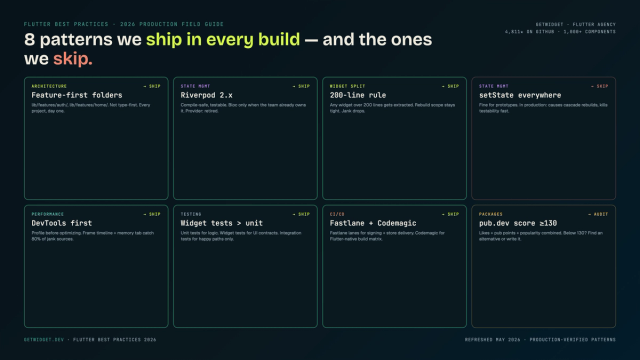
Flutter Mobile App Development: A 2026 Production Field Guide
How we structure Flutter projects at GetWidget in 2026: feature-first layout, Riverpod defaults, Dart 3 records and sealed classes, Material 3 theming, the 200-line widget rule, performance diagnosis, CI/CD pipelines, and the production pitfalls that bite teams after launch.

Top 10 Best Flutter Avatar Widgets: A 2026 Practitioner Guide
Top 10 Flutter avatar widgets to render user images and initials in circular, square, and custom shapes — with code examples and GetWidget's GFAvatar.
How to Design Custom Flutter Buttons in 2026: A Practitioner Guide to All 5 M3 Button Widgets
Flutter button widgets in 2026: the five Material 3 button classes (Filled, FilledTonal, Elevated, Outlined, Text), ButtonStyle deep-dive, GFButton when M3 isn't enough, FAB and IconButton patterns, M2 migration map, plus the accessibility and performance bars no tutorial covers.