Best Flutter Drawer Widgets in 2026: Drawer, NavigationDrawer, and the Packages Still Worth Using
Top 10 Flutter drawer widgets for slide-out side menus: customization patterns, code examples, and how to integrate GetWidget's GFDrawer into your app.

Drawers are an old pattern that Material 3 quietly modernized. Flutter ships two drawer widgets in 2026: the original Drawer, still around for M2 compatibility, and NavigationDrawer, which Material 3 added with NavigationDrawerDestination children plus built-in selected-state animation. NavigationDrawer also gives you headline and divider slots that the original Drawer made you build by hand. The widget choice changes the navigation feel of the whole app, and most tutorials we see online have not caught up to the M3 split.
Two framing notes before the comparison. First: in 2026, drawers are no longer the default mobile navigation pattern. Many apps we ship route primary destinations through a BottomNavigationBar or NavigationBar and reserve the drawer for secondary actions like account and settings. The best flutter widgets in the drawer category solve the case where you have more than 5 primary destinations, multiple personas with different surfaces, or a tablet/desktop layout that warrants a persistent side panel. Second: the ten flutter drawer widget packages our older guides cataloged still exist, but most have not been updated for M3. We name which ones still earn their place.
Do you actually need a flutter drawer widget in 2026?
Before choosing a drawer package or widget, the cheaper question to answer is whether your app needs a drawer at all. Material 3 design guidance favors persistent navigation surfaces when the app has more than five primary destinations, and bottom navigation when there are 3 to 5. A drawer is most useful when secondary navigation (account, settings, help) outnumbers primary navigation, or when the app targets tablet and desktop where horizontal space is plentiful.
| App shape | Bottom nav | Drawer (modal) | NavigationDrawer (standard / persistent) | Tabs |
|---|---|---|---|---|
| 3-5 primary destinations, mobile-only | Yes, default | Only if secondary needs surfacing | No | Inside a section |
| 6+ primary destinations, mobile-only | Too crowded | Yes, swipeable + hamburger | No | Inside drawer |
| Multi-persona (admin/user/manager) app | Hides persona switching | Yes, primary nav by persona | Yes, on tablet | No |
| Tablet/desktop responsive layout | Wastes side space | OK | Yes, persistent panel | Inside main pane |
| Settings/account hidden from main flow | No | Yes, account drawer | Optional | No |
Flutter Drawer vs NavigationDrawer: the built-in choice
Drawer is the original Material drawer. It takes a single child (typically a ListView with ListTile rows) and slides in from the side when the user taps the hamburger icon in the AppBar. It works fine, predates Material 3, and gives you full control over what goes inside.
Scaffold(
  appBar: AppBar(title: const Text('Home')),
  drawer: Drawer(
    child: ListView(
      children: [
        const DrawerHeader(child: Text('Menu')),
        ListTile(title: const Text('Profile'), onTap: _goProfile),
        ListTile(title: const Text('Settings'), onTap: _goSettings),
      ],
    ),
  ),
  body: const _HomeBody(),
);
NavigationDrawer is the Material 3 update. Instead of one child, it takes a list of children that includes NavigationDrawerDestination widgets and any custom widgets (headlines, dividers, sign-out buttons) you want between them. The drawer manages selected state automatically through the selectedIndex prop, and the destination items get hover and focus styles plus a selected state for free.
NavigationDrawer(
  selectedIndex: _selectedIndex,
  onDestinationSelected: (i) => setState(() => _selectedIndex = i),
  children: [
    Padding(
      padding: const EdgeInsets.fromLTRB(28, 16, 16, 10),
      child: Text('Menu', style: Theme.of(context).textTheme.titleSmall),
    ),
    NavigationDrawerDestination(
      icon: const Icon(Icons.home_outlined),
      selectedIcon: const Icon(Icons.home),
      label: const Text('Home'),
    ),
    NavigationDrawerDestination(
      icon: const Icon(Icons.person_outline),
      selectedIcon: const Icon(Icons.person),
      label: const Text('Profile'),
    ),
    const Divider(indent: 28, endIndent: 28),
    NavigationDrawerDestination(
      icon: const Icon(Icons.settings_outlined),
      selectedIcon: const Icon(Icons.settings),
      label: const Text('Settings'),
    ),
  ],
);
The differences worth knowing. NavigationDrawer enforces the M3 visual treatment automatically, which is what most modern designs want. The selectedIcon prop is M3-specific — most designs use a filled icon when selected and an outlined icon when not, and the widget handles the swap for you. NavigationDrawer also caps practical usefulness at around 3 to 7 destinations; past that, the drawer feels cluttered and a search-style nav surface usually fits better.
Modal vs persistent drawers: responsive design across screen widths
Both Drawer and NavigationDrawer default to modal behavior on mobile: tap the hamburger, drawer slides in over the body, tap outside to dismiss. On tablet and desktop layouts, the same drawer should be persistent: always visible alongside the body, no hamburger needed. Flutter does not handle this responsive switch automatically. You wire it yourself using a LayoutBuilder or MediaQuery to pick between Drawer-as-modal and a side-panel layout.
LayoutBuilder(
  builder: (context, constraints) {
    final isWide = constraints.maxWidth >= 840;
    if (isWide) {
      return Row(
        children: [
          SizedBox(width: 280, child: _drawerContent),
          const VerticalDivider(width: 1),
          Expanded(child: _bodyContent),
        ],
      );
    }
    return Scaffold(
      appBar: AppBar(),
      drawer: NavigationDrawer(children: _drawerChildren),
      body: _bodyContent,
    );
  },
);
The 840 dp breakpoint matches Material 3's compact-vs-medium window class. Below 840, treat the screen as a phone; at or above, you have room for a persistent side panel. We use 840 as the default; some designs push to 1024 dp before switching to persistent because the drawer overlaps content on narrow tablets in landscape.
Best flutter drawer widget packages that are still worth knowing in 2026
Built-in NavigationDrawer covers 80% of needs. The community packages below earn their place when the design calls for an animation style, layout pattern, or interaction model that the built-in does not ship. Most older packages our previous guides listed have stalled on maintenance, so the shortlist below reflects packages we have evaluated as of May 2026.
| Package | What it adds over built-in | When to pick it |
|---|---|---|
| flutter_zoom_drawer | Body scales/rotates as drawer opens (Inshorts-style) | Brand needs a distinct drawer interaction |
| flutter_inner_drawer | Drawer slides from any of 4 sides, inner-stacked | Multi-level navigation needs |
| flutter_slider_drawer | Horizontal slide-out with custom animation curves | Designs that want non-default slide motion |
| collapsible_sidebar | Mini-rail mode for desktop layouts | Desktop/web apps needing rail + expanded states |
| GFDrawer (GetWidget) | Themed default with shape + status presets | Apps already using GetWidget components |
Packages we removed from our previous shortlist: shrink_sidemenu, hidden_drawer_menu, elastic_drawer, fancy_drawer, multilevel_drawer. Each has either stopped updating, lost Dart 3 compatibility, or duplicated functionality the M3 NavigationDrawer now covers natively. If a design truly needs one of these effects, the underlying animation is usually 50 lines of AnimatedBuilder code and we recommend writing the custom widget rather than taking a dependency on an unmaintained package.
Drawer state management: open, close, and selected-route binding
Two state concerns come up in every drawer deployment. First, opening and closing the drawer programmatically (not just from the hamburger tap). Use Scaffold.of(context).openDrawer() and Navigator.of(context).pop() to open and close. Wrap any custom drawer-trigger button in a Builder so it gets a context below the Scaffold.
Second, syncing the selected destination with the current route. NavigationDrawer's selectedIndex needs to update when the route changes from inside a destination (back button, deep link, programmatic navigation). We pass a route-aware state notifier (Riverpod's StateProvider or a Bloc) that listens to the Router and updates selectedIndex on every push or replace. Skipping this is how teams end up with a drawer that highlights Home even though the user is two screens deep into Settings.
Performance and animation: where drawers janky in production
Accessibility: drawers are easy to break for screen reader users
Three accessibility patterns every flutter drawer widget needs to clear. First, the hamburger button needs a Semantics label (tooltip on IconButton). Flutter's default 'Open navigation menu' string works in English but is not always localized; check that your app's l10n covers it. Second, when the drawer opens, focus should move into the drawer's first focusable child so screen reader users land in the menu, not stuck on the hamburger. Third, when the drawer closes, focus should return to the hamburger button. The built-in NavigationDrawer handles the focus moves automatically; custom drawers usually do not.
The other common miss is contrast on the drawer's selected-state indicator. M3's NavigationDrawerDestination uses ColorScheme.secondaryContainer for the selected background pill — that passes WCAG AA against onSecondaryContainer text by default. If you override the colors, run the WCAG contrast check before shipping; the selected indicator is the single most-scanned visual element in any drawer.
Drawers are one widget in a stack of navigation choices we maintain default patterns for. The full Flutter widgets catalog covers the rest. For the broader Flutter app delivery patterns — state, routing, performance, CI/CD — see our Flutter mobile app development field guide.
Common questions about flutter drawer widgets
What is the difference between Drawer and NavigationDrawer in Flutter?
Drawer is the M2-era widget that takes a single child (typically a ListView). NavigationDrawer is the Material 3 update that takes a list of children including NavigationDrawerDestinations, with built-in selected-state animation and hover/focus styles. For new apps in 2026, NavigationDrawer is the right default when useMaterial3 is true.
How do I add a flutter drawer widget to my app?
Pass a Drawer or NavigationDrawer widget to the drawer property of Scaffold. The hamburger icon appears in the AppBar automatically, and the drawer slides in when tapped. Wrap the drawer-content widgets in const where possible to avoid rebuild cost during the slide animation.
How many items should a navigation drawer have?
Material 3 guidance suggests 3 to 7 destinations as the sweet spot. Below 3, a tab bar fits better. Past 7, the drawer becomes a long scrolling list which loses the scanability that makes drawers useful. Group secondary actions like settings and account below a divider so they do not crowd the primary destinations.
How do I make a flutter drawer widget persistent on tablet and desktop?
Use a LayoutBuilder or MediaQuery to detect the window width. Below 840 dp, render the drawer as a modal (Scaffold.drawer). At or above 840 dp, render the drawer as a side panel inside a Row alongside the body. Flutter does not handle this switch automatically.
Which flutter drawer package should I use?
Built-in NavigationDrawer covers most cases. Reach for a package only when the design needs a specific interaction (flutter_zoom_drawer for Inshorts-style body rotation, collapsible_sidebar for desktop rail + expanded states). Many older drawer packages have stalled on maintenance; verify Dart 3 compatibility and last-update date on pub.dev before adding.
How do I sync drawer selectedIndex with the current route?
Subscribe to your router (GoRouter, Navigator state, or Riverpod-managed route state) and update selectedIndex whenever the route changes. Without this binding, the drawer highlights the last-tapped destination even if the user navigated to a different screen via back button, deep link, or programmatic push.
Is the flutter drawer widget accessible by default?
Partially. The built-in NavigationDrawer handles focus movement (drawer open moves focus into the drawer, close returns focus to the hamburger) and the hamburger has a default Semantics label. But your selected-state colors must clear WCAG AA contrast, and custom-built drawers need explicit focus management — Flutter does not do it for you outside the built-in widget.

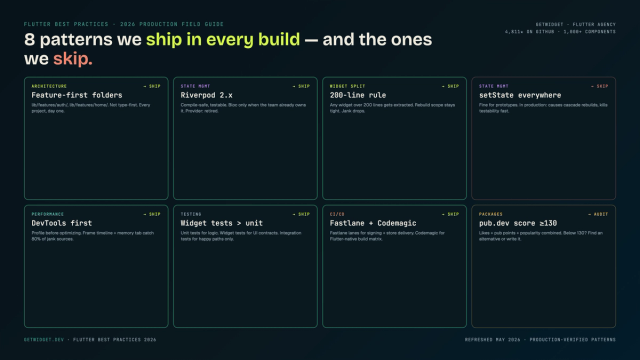
Flutter Mobile App Development: A 2026 Production Field Guide
How we structure Flutter projects at GetWidget in 2026: feature-first layout, Riverpod defaults, Dart 3 records and sealed classes, Material 3 theming, the 200-line widget rule, performance diagnosis, CI/CD pipelines, and the production pitfalls that bite teams after launch.

Flutter TabBar Widget in 2026: TabBar, TabBarView, TabController, and the Material 3 Primary vs Secondary Distinction
Build a Flutter TabBar widget to navigate between pages in a single view. Customize indicators, handle controllers, and pair with GetWidget's GFTabs.
How to Design Custom Flutter Buttons in 2026: A Practitioner Guide to All 5 M3 Button Widgets
Flutter button widgets in 2026: the five Material 3 button classes (Filled, FilledTonal, Elevated, Outlined, Text), ButtonStyle deep-dive, GFButton when M3 isn't enough, FAB and IconButton patterns, M2 migration map, plus the accessibility and performance bars no tutorial covers.